Oracle TDE (Transparent Data Encryption): The Complete Guide for Oracle AI Database 26ai
Oracle TDE Transparent Data Encryption Database Security
In today’s data-driven world, protecting sensitive information at rest is not just a best practice—it’s a compliance requirement. Oracle Transparent Data Encryption (TDE) provides a robust solution for encrypting database files, ensuring that even if storage media is stolen, your data remains secure and inaccessible to unauthorized users.
This comprehensive guide walks you through Oracle TDE concepts, implementation, and maintenance specifically for Oracle AI Database 26ai running on a VirtualBox VM, as described in this installation guide. We’ll cover everything from foundational concepts to hands-on configuration and ongoing maintenance.
Table of Contents
What is Oracle Transparent Data Encryption (TDE)?
Oracle Transparent Data Encryption (TDE) is a data-at-rest encryption feature that protects sensitive data stored in database files. Unlike application-level encryption, TDE operates at the database layer, making it transparent to applications—data is automatically encrypted when written to disk and decrypted when accessed by authorized users or applications.
TDE is included with Oracle Advanced Security, which is a licensed option for Oracle Database Enterprise Edition. It addresses the critical security gap where database authentication and authorization mechanisms protect data access but not the physical data files where the data is stored.
Key Benefits of Oracle TDE
- Compliance Ready: Helps meet regulatory requirements like PCI-DSS, HIPAA, GDPR, and SOX
- Transparent Operation: No application changes required—encryption/decryption happens automatically
- Granular Control: Encrypt entire tablespaces, specific tables, or individual columns
- Performance Optimized: Minimal performance overhead with hardware acceleration support
- Comprehensive Protection: Secures data files, redo logs, backups, and temporary files
- Key Management: Flexible key storage options including Oracle Wallet, Hardware Security Modules (HSM), and Oracle Key Vault
How Oracle TDE Works
Oracle TDE uses a hierarchical key management system to efficiently encrypt and decrypt data:
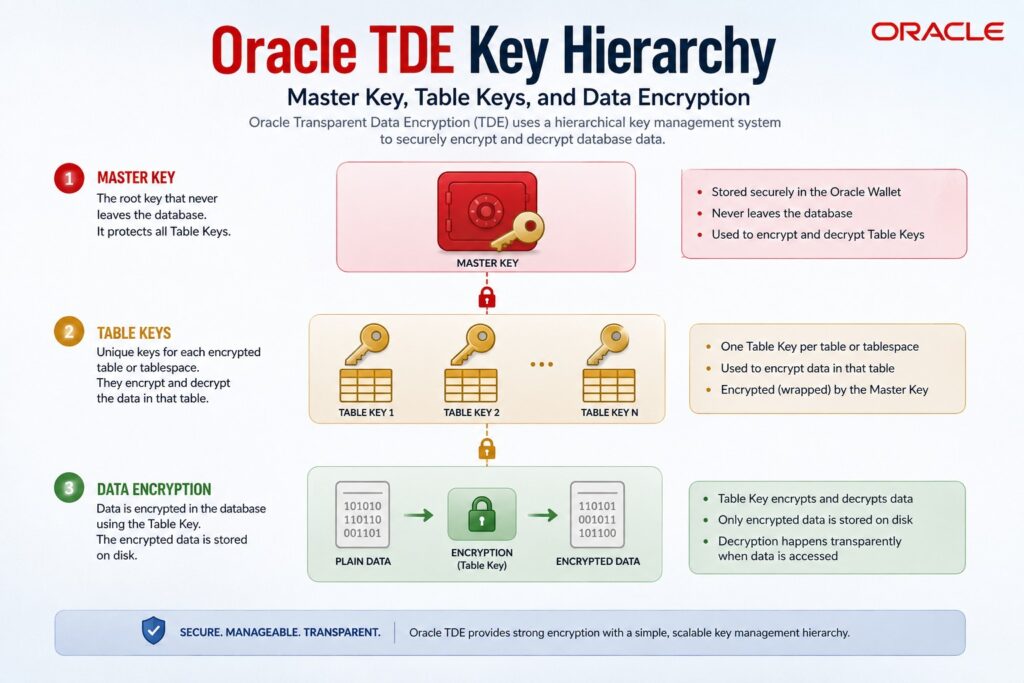
TDE Key Hierarchy
- Master Encryption Key: The root key stored in an external keystore (Oracle Wallet or HSM). This key encrypts all other keys in the hierarchy.
- Tablespace Encryption Keys: Unique keys for each encrypted tablespace, encrypted by the master key
- Table/Column Keys: Keys for specific encrypted columns or tables, also encrypted by the master key
- Data Encryption: Actual data is encrypted using standard algorithms (AES-128, AES-192, or AES-256)
Important for Oracle AI Database 26ai: Starting with 26ai, AES256 is the new default encryption algorithm for TDE, providing stronger security and aligning with quantum-resistant practices. This means that when you upgrade from previous versions, Oracle will automatically perform rekey operations to upgrade existing encrypted data to AES256.
When a user or application accesses encrypted data, Oracle TDE:
- Opens the wallet/keystore containing the master encryption key
- Uses the master key to decrypt the appropriate tablespace or column key
- Uses the decrypted key to decrypt the actual data
- Returns the cleartext data to the authorized user/application
Key TDE Components
1. TDE Wallet (Keystore)
The TDE Wallet is a PKCS#12 container that stores the master encryption key and other encryption keys. It’s essentially a password-protected file that resides on the database server’s filesystem.
Wallet Types:
- Password-based Wallet (ewallet.p12): The primary wallet file that requires a password to open
- Auto-login Wallet (cwallet.sso): Allows automatic wallet opening when the database starts (derived from the password wallet)
- Hardware Security Module (HSM): External hardware device for enhanced security
- Oracle Key Vault: Centralized key management solution for enterprise environments
⚠️ Critical Note for upgrading to 26ai: If TDE is enabled but WALLET_ROOT is not configured, you will be blocked from upgrading to 26ai. Always ensure proper wallet configuration before upgrading.
2. Master Encryption Key
The TDE Master Encryption Key is the foundation of the TDE key hierarchy. It’s generated when you first set up TDE and is used to encrypt all other encryption keys in your database.
Best Practice: Always create a backup of your master encryption key when you create it, as losing this key means losing access to all encrypted data.
3. Encryption Algorithms
Oracle TDE supports several encryption algorithms:
| Algorithm | Key Size | Default in 26ai | Notes |
|---|---|---|---|
| AES | 128, 192, or 256 bits | ✅ AES256 | FIPS 140-2 compliant |
| 3DES | 168 bits | ❌ No | Legacy, not recommended |
Prerequisites for Our Environment
This guide assumes you have completed the Oracle AI Database 26ai installation on a VirtualBox VM as described in this installation guide. Here’s what you should have:
Environment Setup
- Operating System: Oracle Linux 9.5
- Virtualization: VirtualBox VM
- Database: Oracle AI Database 26ai Enterprise Edition (23.26.0.0.0)
- Storage: ASM with DATA (50GB x2) and FRA (25GB x3) diskgroups
- Users:
oracle(database owner),grid(ASM owner) - Database Home:
/u01/app/oracle/product/23.26.0/dbhome_1 - Grid Home:
/u01/app/23.26.0/grid - Database Name:
orcl(or your chosen SID)
Requirements for TDE
- Oracle Advanced Security Option: TDE requires this licensed option (included in Enterprise Edition)
- Database Compatibility:
COMPATIBLEparameter must be set to at least 11.1.0.0 - File System Permissions: Oracle user must have read/write access to the wallet directory
- Backup Strategy: Ensure you have a backup strategy for both database and wallet files
Note: The installation guide already sets up the necessary infrastructure, including ASM diskgroups and proper user permissions, making it an ideal foundation for implementing TDE.
Step-by-Step TDE Implementation
Now let’s implement TDE on your Oracle AI Database 26ai installation. We’ll follow the official Oracle documentation (Oracle AI Database Transparent Data Encryption Guide) while adapting the steps for our VirtualBox VM environment.
Step 1: Set Initialization Parameters
The first step is to configure the database parameters that tell Oracle where to find the TDE wallet and how to manage encryption.
1.1 Create Wallet Directory
Connect to your VM as the oracle user and create the wallet directory. For our environment, we’ll use /u01/app/oracle/wallet:
# run as the oracle user
# create wallet directory
. ora26.env
mkdir -p /u01/app/oracle/wallet/${ORACLE_SID}
# set proper permissions (critical for security)
chmod -R 700 /u01/app/oracle/wallet
chown -R oracle:oinstall /u01/app/oracle/wallet
⚠️ Security Note: The wallet directory must have 700 permissions (read/write/execute for owner only). Never store wallet files in a location accessible to other users.
1.2 Configure Database Parameters
Set the TDE related parameters in your database. For Oracle AI Database 26ai, the WALLET_ROOT parameter is mandatory:
# Connect to your CDB as SYSDBA (handled by / as sysdba)
. ora26.env
sqlplus -S / as sysdba <<EOF


-- Set WALLET_ROOT to point to your wallet directory
-- This is REQUIRED for Oracle 26ai
ALTER SYSTEM SET WALLET_ROOT='/u01/app/oracle/wallet/${ORACLE_SID}' SCOPE = SPFILE;

-- Enable automatic tablespace encryption
-- This ensures new tablespaces are encrypted by default
ALTER SYSTEM SET TABLESPACE_ENCRYPTION='AUTO_ENABLE' SCOPE=SPFILE;

-- Optional: Set the default encryption algorithm
-- In 26ai, AES256 is the default, but you can explicitly set it
-- ALTER SYSTEM SET "TABLESPACE_ENCRYPTION_DEFAULT_ALGORITHM"='AES256' SCOPE=BOTH SID='*';

-- restart the database
shutdown immediate
startup

-- set the TDE_CONFIGURATION parameter
ALTER SYSTEM SET TDE_CONFIGURATION="KEYSTORE_CONFIGURATION=FILE" SCOPE=BOTH SID = '*';

-- Verify the parameters
show parameter wallet
show parameter encryption
show parameter tde

EXIT;
EOF
Sample Output (click to expand):
[oracle@lin1 ~]$ sqlplus -S / as sysdba <<EOF
>
>
> -- Set WALLET_ROOT to point to your wallet directory
> -- This is REQUIRED for Oracle 26ai
> ALTER SYSTEM SET WALLET_ROOT='/u01/app/oracle/wallet/${ORACLE_SID}' SCOPE = SPFILE;
>
> -- Enable automatic tablespace encryption
> -- This ensures new tablespaces are encrypted by default
> ALTER SYSTEM SET TABLESPACE_ENCRYPTION='AUTO_ENABLE' SCOPE=SPFILE;
>
> -- Optional: Set the default encryption algorithm
> -- In 26ai, AES256 is the default, but you can explicitly set it
> -- ALTER SYSTEM SET "TABLESPACE_ENCRYPTION_DEFAULT_ALGORITHM"='AES256' SCOPE=BOTH SID='*';
>
> -- restart the database
> shutdown immediate
> startup
>
> -- set the TDE_CONFIGURATION parameter
> ALTER SYSTEM SET TDE_CONFIGURATION="KEYSTORE_CONFIGURATION=FILE" SCOPE=BOTH SID = '*';
>
> -- Verify the parameters
> show parameter wallet
> show parameter encryption
> show parameter tde
>
> EXIT;
> EOF

System altered.


System altered.

Database closed.
Database dismounted.
ORACLE instance shut down.
ORACLE instance started.

Total System Global Area 4476610824 bytes
Fixed Size                  5015816 bytes
Variable Size             855638016 bytes
Database Buffers         3607101440 bytes
Redo Buffers                8855552 bytes
Database mounted.
Database opened.

System altered.


NAME                                 TYPE        VALUE
------------------------------------ ----------- ------------------------------
ssl_wallet                           string
wallet_root                          string      /u01/app/oracle/wallet/orcl

NAME                                 TYPE        VALUE
------------------------------------ ----------- ------------------------------
tablespace_encryption                string      AUTO_ENABLE
tablespace_encryption_default_algori string      AES256
thm
tablespace_encryption_default_cipher string      XTS
_mode

NAME                                 TYPE        VALUE
------------------------------------ ----------- ------------------------------
one_step_plugin_for_pdb_with_tde     boolean     FALSE
tde_configuration                    string      KEYSTORE_CONFIGURATION=FILE
tde_key_cache                        boolean     FALSE
[oracle@lin1 ~]$
Important for upgrading to 26ai: The WALLET_ROOT parameter was introduced in Oracle 21c and is required for Oracle 26ai. If this parameter is not set and TDE is enabled, you cannot upgrade to 26ai.
Note for ASM: If you’re using ASM (as configured in the installation guide), the wallet can also be stored in ASM. However, for simplicity and to match common practices, we’re using the filesystem approach here.
Step 2: Create the TDE Wallet (Keystore)
Now we’ll create the actual wallet that will store our encryption keys.
2.1 Create the Wallet
Use the ADMINISTER KEY MANAGEMENT command to create the wallet:
# run as the oracle user on the CDB
sql -S / as sysdba <<EOF
-- Create the wallet with a strong password
-- Replace 'MySecureWalletPass123!' with your own strong password
ADMINISTER KEY MANAGEMENT CREATE KEYSTORE IDENTIFIED BY "MySecureWalletPass123!";

-- Verify the wallet was created
SELECT * FROM V\$ENCRYPTION_WALLET;

EXIT;
EOF
Sample Output (click to expand):
[oracle@lin1 ~]$ sql -S / as sysdba <<EOF
> -- Create the wallet with a strong password
> -- Replace 'MySecureWalletPass123!' with your own strong password
> ADMINISTER KEY MANAGEMENT CREATE KEYSTORE IDENTIFIED BY "MySecureWalletPass123!";
>
> -- Verify the wallet was created
> SELECT * FROM V\$ENCRYPTION_WALLET;
>
> EXIT;
> EOF


Key MANAGEMENT succeeded.


WRL_TYPE WRL_PARAMETER                    STATUS WALLET_TYPE WALLET_ORDER KEYSTORE_MODE FULLY_BACKED_UP CON_ID
________ ________________________________ ______ ___________ ____________ _____________ _______________ ______
FILE     /u01/app/oracle/wallet/orcl/tde/ CLOSED UNKNOWN     SINGLE       NONE          UNDEFINED            1
FILE                                      CLOSED UNKNOWN     SINGLE       UNITED        UNDEFINED            2
FILE                                      CLOSED UNKNOWN     SINGLE       UNITED        UNDEFINED            3

[oracle@lin1 ~]$
💡 Password Requirements:
- Minimum 8 characters
- At least 1 uppercase letter
- At least 1 lowercase letter
- At least 1 digit
- At least 1 special character
- Store this password securely – you’ll need it for wallet operations
2.2 Create Auto-Login Wallet (Optional but Recommended)
For production environments, create an auto-login wallet so the database can open the wallet automatically when it starts:
# run as the oracle user on the CDB
sql -S / as sysdba <<EOF
-- First, open the wallet with the password
ADMINISTER KEY MANAGEMENT SET KEYSTORE OPEN IDENTIFIED BY "MySecureWalletPass123!" CONTAINER=ALL;

-- Create auto-login wallet
ADMINISTER KEY MANAGEMENT CREATE AUTO_LOGIN KEYSTORE FROM KEYSTORE IDENTIFIED BY "MySecureWalletPass123!";

-- Verify both wallets exist
!ls -la /u01/app/oracle/wallet/orcl/tde

EXIT;
EOF
Sample Output (click to expand):
[oracle@lin1 ~]$ # run as the oracle user on the CDB
[oracle@lin1 ~]$ sql -S / as sysdba <<EOF
> -- First, open the wallet with the password
> ADMINISTER KEY MANAGEMENT SET KEYSTORE OPEN IDENTIFIED BY "MySecureWalletPass123!";
>
> -- Create auto-login wallet
> ADMINISTER KEY MANAGEMENT CREATE AUTO_LOGIN KEYSTORE FROM KEYSTORE IDENTIFIED BY "MySecureWalletPass123!";
>
> -- Verify both wallets exist
> !ls -la /u01/app/oracle/wallet/orcl/tde
>
> EXIT;
> EOF


Key MANAGEMENT succeeded.


Key MANAGEMENT succeeded.

total 16
drwxr-x--- 2 oracle asmadmin 4096 Aug  5 16:11 .
drwx------ 3 oracle oinstall 4096 Aug  5 16:10 ..
-rw------- 1 oracle asmadmin 2608 Aug  5 16:11 cwallet.sso
-rw------- 1 oracle asmadmin 2563 Aug  5 16:10 ewallet.p12

[oracle@lin1 ~]$
ewallet.p12 is the Password-based wallet
cwallet.sso is the Auto-login wallet
⚠️ Important Security Considerations:
- Do NOT delete the password-based wallet (ewallet.p12) – you need it to regenerate or rekey the TDE master encryption key in the future
- The auto-login wallet (cwallet.sso) is derived from the password wallet and allows automatic opening
- Both files must be backed up together
- Store wallet backups in a secure, separate location from the database backups
Step 3: Set the TDE Master Encryption Key
Now we’ll create the master encryption key that will protect all other encryption keys in your database.
3.1 Create the Master Key
Execute the following command to create the master encryption key in the wallet:
# run as the oracle user on the CDB
sql -S / as sysdba <<EOF
-- Ensure the wallet is open
ADMINISTER KEY MANAGEMENT SET KEYSTORE OPEN IDENTIFIED BY "MySecureWalletPass123!" CONTAINER=ALL;

-- Create the master encryption key with backup
-- The WITH BACKUP clause creates a backup of the key
ADMINISTER KEY MANAGEMENT SET KEY IDENTIFIED BY "MySecureWalletPass123!"
WITH BACKUP USING 'tde_master_key_backup' CONTAINER=ALL;

-- Verify the master key was created
SELECT * FROM V\$ENCRYPTION_WALLET;

EXIT;
EOF
Sample Output (click to expand):
[oracle@lin1 ~]$ # run as the oracle user on the CDB
[oracle@lin1 ~]$ sql -S / as sysdba <<EOF
> -- Ensure the wallet is open
> ADMINISTER KEY MANAGEMENT SET KEYSTORE OPEN IDENTIFIED BY "MySecureWalletPass123!" CONTAINER=ALL;
>
> -- Create the master encryption key with backup
> -- The WITH BACKUP clause creates a backup of the key
> ADMINISTER KEY MANAGEMENT SET KEY IDENTIFIED BY "MySecureWalletPass123!"
> WITH BACKUP USING 'tde_master_key_backup' CONTAINER=ALL;
>
> -- Verify the master key was created
> SELECT * FROM V\$ENCRYPTION_WALLET;
>
> EXIT;
> EOF


Error starting at line : 2 in command -
ADMINISTER KEY MANAGEMENT SET KEYSTORE OPEN IDENTIFIED BY "MySecureWalletPass123!" CONTAINER=ALL
Error report -
ORA-28354: Encryption wallet, auto login wallet, or HSM is already open.
Help: https://docs.oracle.com/error-help/db/ora-28354/

28354. 0000 -  "Encryption wallet, auto login wallet, or HSM is already open."
*Cause:    Either the encryption wallet, auto login wallet, or hardware security module (HSM) keystore was already open.
*Action:   None.

Key MANAGEMENT succeeded.


WRL_TYPE WRL_PARAMETER                    STATUS WALLET_TYPE WALLET_ORDER KEYSTORE_MODE FULLY_BACKED_UP CON_ID
________ ________________________________ ______ ___________ ____________ _____________ _______________ ______
FILE     /u01/app/oracle/wallet/orcl/tde/ OPEN   PASSWORD    SINGLE       NONE          NO                   1
FILE                                      OPEN   PASSWORD    SINGLE       UNITED        NO                   2
FILE                                      OPEN   PASSWORD    SINGLE       UNITED        NO                   3

[oracle@lin1 ~]$
💡 What just happened:
The WITH BACKUP USING clause creates a backup of the master key with the specified label. This backup is stored in the wallet and can be used for recovery if needed.
3.2 Verify Master Key Creation
Check that the master key exists and is properly stored:
# run as the oracle user on the CDB
sql -S / as sysdba <<EOF
SELECT
    b.name AS container_name,
    a.wrl_type,
    a.wrl_parameter,
    a.status,
    a.wallet_type
FROM v\$encryption_wallet a, v\$containers b
WHERE a.con_id = b.con_id
ORDER BY a.con_id;
EXIT;
EOF
Output (click to expand):
[oracle@lin1 ~]$ # run as the oracle user on the CDB
[oracle@lin1 ~]$ sql -S / as sysdba <<EOF
> SELECT
>     b.name AS container_name,
>     a.wrl_type,
>     a.wrl_parameter,
>     a.status,
>     a.wallet_type
> FROM v\$encryption_wallet a, v\$containers b
> WHERE a.con_id = b.con_id
> ORDER BY a.con_id;
> EXIT;
> EOF


CONTAINER_NAME WRL_TYPE WRL_PARAMETER                    STATUS WALLET_TYPE
______________ ________ ________________________________ ______ ___________
CDB$ROOT       FILE     /u01/app/oracle/wallet/orcl/tde/ OPEN   PASSWORD
PDB$SEED       FILE                                      OPEN   PASSWORD
PDB1           FILE                                      OPEN   PASSWORD

[oracle@lin1 ~]$
Step 4: Restart the Database
For the WALLET_ROOT and TABLESPACE_ENCRYPTION parameters to take full effect, restart your database:
# run as the oracle user on the CDB
sql -S / as sysdba <<EOF
-- Shutdown the database
SHUTDOWN IMMEDIATE;

-- Startup the database
STARTUP;

-- Verify parameters are set
SELECT name, value FROM v\$parameter
WHERE name IN ('wallet_root', 'tablespace_encryption');
EXIT;
EOF
Output (click)
Database closed.
Database dismounted.
ORACLE instance shut down.
ORACLE instance started.

Total System Global Area   4476610824 bytes
Fixed Size                    5015816 bytes
Variable Size               855638016 bytes
Database Buffers           3607101440 bytes
Redo Buffers                  8855552 bytes
Database mounted.
Database opened.

NAME                  VALUE
_____________________ ___________________________
tablespace_encryption AUTO_ENABLE
wallet_root           /u01/app/oracle/wallet/orcl
Important: After restart, the auto-login wallet should open automatically. Verify this with:
SELECT status FROM V$ENCRYPTION_WALLET WHERE wrl_type = 'FILE';Expected output: OPEN
Output (click):
SQL> SELECT status FROM V$ENCRYPTION_WALLET WHERE wrl_type = 'FILE';

STATUS
------------------------------
OPEN
OPEN
OPEN

SQL>
Step 5: Encrypt Tablespaces
Now that TDE is configured, let’s encrypt some tablespaces. With TABLESPACE_ENCRYPTION=AUTO_ENABLE, new tablespaces will be encrypted automatically, but we need to handle existing ones.
5.1 Create a New Encrypted Tablespace
Create a new tablespace that will be encrypted by default:
# run as the oracle user on PDB1
sql -S / as sysdba <<EOF
-- Create an encrypted tablespace for sensitive data
alter session set container=pdb1;
CREATE TABLESPACE secure_data
DATAFILE '+DATA' SIZE 40M
AUTOEXTEND ON
ENCRYPTION USING 'AES256' ENCRYPT;

-- Verify the tablespace is encrypted
SELECT t.name AS tablespace_name,
       e.ts#,
       e.encryptionalg,
       e.ciphermode,
       e.encryptedts
FROM   v\$encrypted_tablespaces e
JOIN   v\$tablespace t ON e.ts# = t.ts#;

EXIT;
EOF
Sample Output (click to expand):
Session altered.


TABLESPACE SECURE_DATA created.


TABLESPACE_NAME TS# ENCRYPTIONALG CIPHERMODE ENCRYPTEDTS
_______________ ___ _____________ __________ ___________
SECURE_DATA       7 AES256        XTS        YES
Note: Thanks to TABLESPACE_ENCRYPTION=AUTO_ENABLE, you could also create the tablespace without the ENCRYPTION clause, and it would still be encrypted:
-- This will also be encrypted due to AUTO_ENABLE
CREATE TABLESPACE auto_secure_data
DATAFILE '+DATA' SIZE 20M AUTOEXTEND ON;
5.2 Encrypt Existing Tablespaces (Online Method)
For existing tablespaces, Oracle 26ai introduces online tablespace encryption, which allows you to encrypt tablespaces without taking them offline. This is a significant improvement over previous versions.
# run as the oracle user on PDB1
sql -S / as sysdba <<EOF
alter session set container=pdb1;
-- create unencrypted data in the USERS tablespace
create table t tablespace users as select a2.* from all_objects a1, all_objects a2 where rownum<=1e6 order by a1.object_id;
-- Start online encryption for an existing tablespace
-- This example encrypts the USERS tablespace
ALTER TABLESPACE users
ENCRYPTION ONLINE USING 'AES256' ENCRYPT;

-- Check the encryption status
SELECT t.name AS tablespace_name,
       e.ts#,
       e.encryptionalg,
       e.ciphermode,
       e.encryptedts
FROM   v\$encrypted_tablespaces e
JOIN   v\$tablespace t ON e.ts# = t.ts#;

-- The status will show 'ENCRYPTING' initially
SELECT t.name AS tablespace_name,
       e.ts#,
       e.encryptionalg,
       e.ciphermode,
       e.encryptedts,
       e.status,
       e.blocks_encrypted, -- number of new blocks that have been encrypted
       e.blocks_decrypted  -- number of encrypted blocks that have been decrypted
FROM   v\$encrypted_tablespaces e
JOIN   v\$tablespace t ON e.ts# = t.ts#;

EXIT;
EOF
Sample Output (click to expand):
[oracle@lin1 ~]$ sql -S / as sysdba <<EOF
> alter session set container=pdb1;
> -- create unencrypted data in the USERS tablespace
> create table t tablespace users as select a2.* from all_objects a1, all_objects a2 where rownum<=1e6 order by a1.object_id;
> -- Start online encryption for an existing tablespace
> -- This example encrypts the USERS tablespace
> ALTER TABLESPACE users
> ENCRYPTION ONLINE USING 'AES256' ENCRYPT;
>
> -- Check the encryption status
> SELECT t.name AS tablespace_name,
>        e.ts#,
>        e.encryptionalg,
>        e.ciphermode,
>        e.encryptedts
> FROM   v\$encrypted_tablespaces e
> JOIN   v\$tablespace t ON e.ts# = t.ts#;
>
> -- The status will show 'ENCRYPTING' initially
> SELECT t.name AS tablespace_name,
>        e.ts#,
>        e.encryptionalg,
>        e.ciphermode,
>        e.encryptedts,
>        e.status,
>        e.blocks_encrypted, -- number of new blocks that have been encrypted
>        e.blocks_decrypted  -- number of encrypted blocks that have been decrypted
> FROM   v\$encrypted_tablespaces e
> JOIN   v\$tablespace t ON e.ts# = t.ts#;
>
> EXIT;
> EOF


Session altered.


Table T created.


TABLESPACE USERS altered.


TABLESPACE_NAME  TS# ENCRYPTIONALG CIPHERMODE ENCRYPTEDTS
________________ ___ _____________ __________ ___________
USERS              6 AES256        XTS        YES
SECURE_DATA        7 AES256        XTS        YES
AUTO_SECURE_DATA   8 AES256        XTS        YES


TABLESPACE_NAME  TS# ENCRYPTIONALG CIPHERMODE ENCRYPTEDTS STATUS BLOCKS_ENCRYPTED BLOCKS_DECRYPTED
________________ ___ _____________ __________ ___________ ______ ________________ ________________
USERS              6 AES256        XTS        YES         NORMAL                0                0
SECURE_DATA        7 AES256        XTS        YES         NORMAL               46                0
AUTO_SECURE_DATA   8 AES256        XTS        YES         NORMAL               46                0

[oracle@lin1 ~]$
Online Encryption Process:
- Oracle starts encrypting data in the background
- Existing data is encrypted as it’s accessed (lazy encryption)
- New data written to the tablespace is encrypted immediately
- The tablespace remains fully accessible during the process
- Use
ALTER TABLESPACE ... ENCRYPTION FINISH;to complete the process if needed
Note for Oracle 26ai: Online tablespace encryption uses tweakable block ciphertext stealing (XTS) instead of the older Cipher Feedback (CFB) mode, providing stronger security.
5.3 Encrypt System Tablespaces (Recommended for Production)
For maximum security, consider encrypting the SYSTEM and SYSAUX tablespaces as well:
# run as the oracle user on PDB1
sql -S / as sysdba <<EOF
alter session set container=pdb1;
-- Encrypt SYSTEM tablespace (requires database in restricted mode)
ALTER SYSTEM ENABLE RESTRICTED SESSION;

-- Disconnect all non-SYS sessions (if needed)
-- ALTER SYSTEM DISCONNECT SESSION 'sid,serial#' POST_TRANSACTION;

-- Encrypt SYSTEM and SYSAUX
ALTER TABLESPACE SYSTEM ENCRYPTION ONLINE USING 'AES256' ENCRYPT;
ALTER TABLESPACE SYSAUX ENCRYPTION ONLINE USING 'AES256' ENCRYPT;

-- Exit restricted mode
ALTER SYSTEM DISABLE RESTRICTED SESSION;

EXIT;
EOF
Sample Output (click to expand):
[oracle@lin1 ~]$ # run as the oracle user on PDB1
[oracle@lin1 ~]$ sql -S / as sysdba <<EOF
> alter session set container=pdb1;
> -- Encrypt SYSTEM tablespace (requires database in restricted mode)
> ALTER SYSTEM ENABLE RESTRICTED SESSION;
>
> -- Disconnect all non-SYS sessions (if needed)
> -- ALTER SYSTEM DISCONNECT SESSION 'sid,serial#' POST_TRANSACTION;
>
> -- Encrypt SYSTEM and SYSAUX
> ALTER TABLESPACE SYSTEM ENCRYPTION ONLINE USING 'AES256' ENCRYPT;
> ALTER TABLESPACE SYSAUX ENCRYPTION ONLINE USING 'AES256' ENCRYPT;
>
> -- Exit restricted mode
> ALTER SYSTEM DISABLE RESTRICTED SESSION;
>
> EXIT;
> EOF


Session altered.


System altered.


TABLESPACE SYSTEM altered.


TABLESPACE SYSAUX altered.


System altered.

[oracle@lin1 ~]$
⚠️ Warning: Encrypting SYSTEM and SYSAUX tablespaces can impact database performance and should be done during a maintenance window. Test this in a non-production environment first.
Step 6: Encrypt Specific Columns
In addition to tablespace-level encryption, TDE supports column-level encryption for more granular control.
6.1 Create a Table with Encrypted Columns
Let’s create a table with specific encrypted columns for sensitive data:
# run as the oracle user on PDB1
sql -S / as sysdba <<EOF
alter session set container=pdb1;
alter session set current_schema=dbsnmp;
-- Create a table in your encrypted tablespace
CREATE TABLE customers (
    customer_id NUMBER PRIMARY KEY,
    first_name VARCHAR2(50),
    last_name VARCHAR2(50),
    email VARCHAR2(100),
    ssn VARCHAR2(11) ENCRYPT,  -- Social Security Number - encrypted
    credit_card VARCHAR2(16) ENCRYPT USING 'AES256',  -- Credit card - encrypted with AES256
    phone VARCHAR2(15)
) TABLESPACE secure_data;

-- Insert some test data
INSERT INTO customers VALUES (
    1, 'John', 'Doe', 'john.doe@example.com',
    '123-45-6789', '4111111111111111', '555-123-4567'
);

-- Query the data - it will be automatically decrypted for authorized users
SELECT * FROM customers;

EXIT;
EOF
Output (click to expand):
[oracle@lin1 ~]$ sql -S / as sysdba <<EOF
> alter session set container=pdb1;
> alter session set current_schema=dbsnmp;
> -- Create a table in your encrypted tablespace
> CREATE TABLE customers (
>     customer_id NUMBER PRIMARY KEY,
>     first_name VARCHAR2(50),
>     last_name VARCHAR2(50),
>     email VARCHAR2(100),
>     ssn VARCHAR2(11) ENCRYPT,  -- Social Security Number - encrypted
>     credit_card VARCHAR2(16) ENCRYPT USING 'AES256',  -- Credit card - encrypted with AES256
>     phone VARCHAR2(15)
> ) TABLESPACE secure_data;
>
> -- Insert some test data
> INSERT INTO customers VALUES (
>     1, 'John', 'Doe', 'john.doe@example.com',
>     '123-45-6789', '4111111111111111', '555-123-4567'
> );
>
> -- Query the data - it will be automatically decrypted for authorized users
> SELECT * FROM customers;
>
> EXIT;
> EOF


Session altered.


Session altered.


Table CUSTOMERS created.


1 row inserted.


CUSTOMER_ID FIRST_NAME LAST_NAME EMAIL                SSN         CREDIT_CARD      PHONE
___________ __________ _________ ____________________ ___________ ________________ ____________
          1 John       Doe       john.doe@example.com 123-45-6789 4111111111111111 555-123-4567

[oracle@lin1 ~]$
6.2 Encrypt Columns in Existing Tables
For existing tables, you can add encrypted columns or modify existing columns to be encrypted:
# run as the oracle user on PDB1
sql -S / as sysdba <<EOF
alter session set container=pdb1;
alter session set current_schema=dbsnmp;
-- Add an encrypted column to an existing table
ALTER TABLE customers ADD (
    bank_account VARCHAR2(20) ENCRYPT
);

-- For existing columns, you need to:
-- 1. Add a new encrypted column
-- 2. Copy data from old column to new column
-- 3. Drop the old column
-- 4. Rename the new column to the old name

ALTER TABLE customers ADD (
    new_email VARCHAR2(100) ENCRYPT
);

UPDATE customers SET new_email = email;

ALTER TABLE customers DROP COLUMN email;

ALTER TABLE customers RENAME COLUMN new_email TO email;

EXIT;
EOF
Sample Output (click to expand):
[oracle@lin1 ~]$ # run as the oracle user on PDB1
[oracle@lin1 ~]$ sql -S / as sysdba <<EOF
> alter session set container=pdb1;
> alter session set current_schema=dbsnmp;
> -- Add an encrypted column to an existing table
> ALTER TABLE customers ADD (
>     bank_account VARCHAR2(20) ENCRYPT
> );
>
> -- For existing columns, you need to:
> -- 1. Add a new encrypted column
> -- 2. Copy data from old column to new column
> -- 3. Drop the old column
> -- 4. Rename the new column to the old name
>
> ALTER TABLE customers ADD (
>     new_email VARCHAR2(100) ENCRYPT
> );
>
> UPDATE customers SET new_email = email;
>
> ALTER TABLE customers DROP COLUMN email;
>
> ALTER TABLE customers RENAME COLUMN new_email TO email;
>
> EXIT;
> EOF


Session altered.


Session altered.


Table CUSTOMERS altered.


Table CUSTOMERS altered.


1 row updated.


Table CUSTOMERS altered.


Table CUSTOMERS altered.

[oracle@lin1 ~]$
⚠️ Important Limitations for Column Encryption:
- You cannot encrypt columns with data types that have size restrictions (e.g., LONG, LONG RAW)
- Encrypted columns cannot be used in certain operations like indexing (unless using virtual columns or using the column NO SALT option)
- Column encryption has a small storage overhead (approximately 16-32 bytes per encrypted value)
- Not all SQL functions work with encrypted columns
TDE Maintenance and Best Practices
Implementing TDE is just the beginning. Proper maintenance ensures your encrypted data remains secure and accessible. Here are the essential maintenance tasks for your Oracle AI Database 26ai TDE implementation.
1. Wallet Management
1.1 Wallet Backup and Recovery
The wallet file is the most critical component of TDE. Without the wallet and its password, you cannot access your encrypted data, even with full database backups. Losing the wallet means permanent data loss.
Backup the Wallet
Create regular backups of your wallet files:
# As oracle user
su - oracle

# Create a backup directory
mkdir -p /u01/app/oracle/wallet_backups/${ORACLE_SID}

# Copy wallet files to backup location
cp /u01/app/oracle/wallet/${ORACLE_SID}/tde/*.p12 /u01/app/oracle/wallet_backups/${ORACLE_SID}
cp /u01/app/oracle/wallet/${ORACLE_SID}/tde/*.sso /u01/app/oracle/wallet_backups/${ORACLE_SID}

# Set proper permissions on backup
chmod -R 700 /u01/app/oracle/wallet_backups
chown -R oracle:oinstall /u01/app/oracle/wallet_backups

# Create a tarball for off-site backup
cd /u01/app/oracle/wallet_backups
tar czvf wallet_backup_${ORACLE_SID}_$(date +%Y%m%d).tar.gz ${ORACLE_SID}

# Securely transfer to backup server
scp wallet_backup_${ORACLE_SID}_$(date +%Y%m%d).tar.gz backup_server:/backups/oracle/
Wallet Backup Best Practices:
- Backup Frequency: Backup the wallet every time you make changes (new keys, rekey operations)
- Separate Storage: Store wallet backups in a different location than database backups
- Secure Transfer: Use encrypted channels (SCP, SFTP) for transferring wallet backups
- Access Control: Restrict access to wallet backups to authorized personnel only
- Documentation: Document the wallet password storage procedure (use a secure password manager)
- Test Restores: Regularly test wallet restore procedures
Recover from Wallet Loss
If you lose your wallet, you can restore from backup:
-- First, ensure the wallet directory exists
!mkdir -p /u01/app/oracle/wallet/${ORACLE_SID}/tde

-- Copy backup files to wallet directory
!cp /u01/app/oracle/wallet_backups/${ORACLE_SID}/ewallet.p12 /u01/app/oracle/wallet/${ORACLE_SID}/tde/
!cp /u01/app/oracle/wallet_backups/${ORACLE_SID}/cwallet.sso /u01/app/oracle/wallet/${ORACLE_SID}/tde/

-- Set proper permissions
!chmod 700 /u01/app/oracle/wallet/${ORACLE_SID}/tde/
!chown oracle:oinstall /u01/app/oracle/wallet/${ORACLE_SID}/tde/*

-- Open the wallet (if not using auto-login)
ADMINISTER KEY MANAGEMENT SET KEYSTORE OPEN
IDENTIFIED BY "MySecureWalletPass123!";

-- Verify wallet status
SELECT * FROM V$ENCRYPTION_WALLET;
⚠️ Critical: If you don’t have a wallet backup and forget the password, your encrypted data is permanently inaccessible. There is no backdoor or recovery mechanism.
2. Key Management
Regular key rotation is a security best practice. Oracle TDE makes this process relatively straightforward.
2.1 Rotate the TDE Master Key
To rotate the master encryption key:
# run as the oracle user on the CDB
sql -S / as sysdba <<EOF
-- Verify the current key
select creator_pdbname, algorithm, creation_time from v\$encryption_keys;

-- next two steps needed to avoid: ORA-28354: Encryption wallet, auto login wallet, or HSM is already open.
-- Close the  auto login keystore
ADMINISTER KEY MANAGEMENT SET KEYSTORE CLOSE CONTAINER = ALL;

-- Open the password-based keystore
ADMINISTER KEY MANAGEMENT SET KEYSTORE OPEN IDENTIFIED BY "MySecureWalletPass123!" CONTAINER=ALL;

-- Create a new master key (this automatically re-encrypts all dependent keys)
ADMINISTER KEY MANAGEMENT SET KEY IDENTIFIED BY "MySecureWalletPass123!"
WITH BACKUP USING 'tde_master_key_rotation_2026' CONTAINER=ALL;

-- Verify the new key
select creator_pdbname, algorithm, creation_time from v\$encryption_keys;

EXIT;
EOF
Sample Output (click to expand):
[oracle@lin1 ~]$ sql -S / as sysdba <<EOF
> -- Verify the current key
> select creator_pdbname, algorithm, creation_time from v\$encryption_keys;
>
> -- next two steps needed to avoid: ORA-28354: Encryption wallet, auto login wallet, or HSM is already open.
> -- Close the  auto login keystore
> ADMINISTER KEY MANAGEMENT SET KEYSTORE CLOSE CONTAINER = ALL;
>
> -- Open the password-based keystore
> ADMINISTER KEY MANAGEMENT SET KEYSTORE OPEN IDENTIFIED BY "MySecureWalletPass123!" CONTAINER=ALL;
>
> -- Create a new master key (this automatically re-encrypts all dependent keys)
> ADMINISTER KEY MANAGEMENT SET KEY IDENTIFIED BY "MySecureWalletPass123!"
> WITH BACKUP USING 'tde_master_key_rotation_2026' CONTAINER=ALL;
>
> -- Verify the new key
> select creator_pdbname, algorithm, creation_time from v\$encryption_keys;
>
> EXIT;
> EOF


CREATOR_PDBNAME ALGORITHM CREATION_TIME
_______________ _________ ___________________________________
CDB$ROOT        AES256    05-AUG-26 10.35.17.381149000 AM GMT
PDB1            AES256    05-AUG-26 10.35.17.415059000 AM GMT


Error starting at line : 6 in command -
ADMINISTER KEY MANAGEMENT SET KEYSTORE CLOSE CONTAINER = ALL
Error report -
ORA-28389: Cannot close auto login keystore.
Help: https://docs.oracle.com/error-help/db/ora-28389/

28389. 00000 -  "Cannot close auto login keystore."
*Cause:    Auto login keystore could not be closed because the keystore type
           that is currently open is of password type and not auto-login.
*Action:   Close the keystore with a password.

Error starting at line : 9 in command -
ADMINISTER KEY MANAGEMENT SET KEYSTORE OPEN IDENTIFIED BY "MySecureWalletPass123!" CONTAINER=ALL
Error report -
ORA-28354: Encryption wallet, auto login wallet, or HSM is already open.
Help: https://docs.oracle.com/error-help/db/ora-28354/

28354. 0000 -  "Encryption wallet, auto login wallet, or HSM is already open."
*Cause:    Either the encryption wallet, auto login wallet, or hardware security module (HSM) keystore was already open.
*Action:   None.

Key MANAGEMENT succeeded.


CREATOR_PDBNAME ALGORITHM CREATION_TIME
_______________ _________ ___________________________________
PDB1            AES256    05-AUG-26 11.44.00.331030000 AM GMT
CDB$ROOT        AES256    05-AUG-26 11.44.00.286483000 AM GMT
CDB$ROOT        AES256    05-AUG-26 10.35.17.381149000 AM GMT
PDB1            AES256    05-AUG-26 10.35.17.415059000 AM GMT

[oracle@lin1 ~]$
💡 What happens during key rotation:
- Oracle generates a new master encryption key
- All existing keys (tablespace keys, column keys) are re-encrypted with the new master key
- The old master key is retained until all data is re-encrypted
- Applications continue to work without interruption
2.2 Rekey Tablespace Encryption
To change the encryption key for a specific tablespace:
-- Rekey a tablespace (this creates a new tablespace encryption key)
ALTER TABLESPACE secure_data ENCRYPTION USING 'AES256' REKEY;

-- For online rekey (Oracle 26ai feature)
ALTER TABLESPACE secure_data ENCRYPTION ONLINE USING 'AES256' REKEY;

-- Monitor rekey progress
SELECT t.name AS tablespace_name,
        e.ts#,
        e.encryptionalg,
        e.ciphermode,
        e.encryptedts,
        e.status,
        e.blocks_encrypted,
        e.blocks_decrypted
 FROM   v$encrypted_tablespaces e
 JOIN   v$tablespace t ON e.ts# = t.ts#;
Note: In Oracle 26ai, you can perform online rekey operations while the tablespace remains accessible, and Data Guard standby recovery can continue uninterrupted.
3. Backup and Recovery Considerations
TDE has important implications for database backup and recovery strategies.
3.1 Backup Strategy
Golden Rule: A database backup without the corresponding wallet backup is useless for recovering encrypted data.
- Coordinate Backups: Always backup the wallet at the same time as the database
- Separate Media: Store wallet backups on separate media from database backups
- Test Recovery: Regularly test recovery procedures including wallet restore
3.2 Recovery with TDE
When recovering a database with TDE:
- Restore the wallet from its separate backup
- Open the wallet with the correct password
- Restore the database from backup
- Recover the database as usual
-- Example recovery process
-- restore wallet from backup
SQL> STARTUP NOMOUNT;
SQL> ADMINISTER KEY MANAGEMENT SET KEYSTORE CLOSE CONTAINER = ALL; -- close the autologin wallet
SQL> ADMINISTER KEY MANAGEMENT SET KEYSTORE OPEN IDENTIFIED BY "MySecureWalletPass123!" CONTAINER=ALL; -- open the password wallet
SQL> alter database mount; -- now the wallet is open and the master key loaded
RMAN> RESTORE DATABASE;
RMAN> RECOVER DATABASE;
RMAN> alter database open;

-- After recovery, ensure wallet is accessible for pdb1
SQL> alter session set container=pdb1;
SQL> ADMINISTER KEY MANAGEMENT SET KEYSTORE OPEN IDENTIFIED BY "MySecureWalletPass123!";
SQL> select * from v$ENCRYPTION_WALLET;

-- Verify encrypted data is accessible
SELECT COUNT(*) FROM dbsnmp.customers;
4. Monitoring TDE
Regular monitoring ensures your TDE implementation is working correctly and helps identify potential issues.
4.1 Key Views for Monitoring
Use these dynamic performance views to monitor TDE:
-- Wallet status
SELECT * FROM V$ENCRYPTION_WALLET;

-- Encrypted tablespaces
SELECT c.name AS container_name,
       t.name AS tablespace_name,
       e.ts#,
       e.encryptionalg,
       e.ciphermode,
       e.encryptedts,
       e.status,
       e.blocks_encrypted,  -- Number of new blocks encrypted
       e.blocks_decrypted   -- Number of encrypted blocks decrypted
FROM   v$encrypted_tablespaces e
JOIN   v$tablespace t ON e.ts# = t.ts# AND e.con_id = t.con_id
JOIN   v$containers c ON e.con_id = c.con_id
ORDER BY c.name, t.name;

-- Encryption keys
select creator_pdbname, algorithm, creation_time from v$encryption_keys;
Common Issues and Troubleshooting
Even with proper implementation, you may encounter issues with TDE. Here are the most common problems and their solutions.
1. Wallet Not Opening
Symptom: ORA-28365: wallet is not open
This error occurs when you try to access encrypted data but the wallet is closed.
Solution:
-- Check wallet status
SELECT * FROM V$ENCRYPTION_WALLET;

-- Open the wallet
ADMINISTER KEY MANAGEMENT SET KEYSTORE OPEN IDENTIFIED BY "your_wallet_password" CONTAINER=ALL;

-- Verify if it's open
SELECT * FROM V$ENCRYPTION_WALLET;
Common Causes:
- Database was restarted and auto-login wallet is not working
- Wrong wallet password was provided
- Wallet files are missing or corrupted
WALLET_ROOTparameter is not set correctly
2. ORA-28360: master key not yet set in wallet
Symptom: ORA-28360: master key not yet set in wallet
This error indicates that you’re trying to encrypt data but the master encryption key hasn’t been created yet.
Solution:
-- Ensure wallet is open
ADMINISTER KEY MANAGEMENT SET KEYSTORE OPEN IDENTIFIED BY "your_wallet_password" CONTAINER=ALL;

-- Create the master key
ADMINISTER KEY MANAGEMENT SET KEY IDENTIFIED BY "your_wallet_password" WITH BACKUP CONTAINER=ALL;
3. ORA-28354: cannot open wallet
Symptom: ORA-28354: cannot open wallet
This error typically indicates a problem with the wallet files or permissions.
Solution:
- Check file permissions:
ls -la /u01/app/oracle/wallet/${ORACLE_SID}/tde/The files should be owned by oracle:oinstall with 600 or 700 permissions.
- Verify wallet location:
SELECT value FROM v$parameter WHERE name = 'wallet_root';- Check if wallet files exist:
  ls -la /u01/app/oracle/wallet/${ORACLE_SID}/tde/ewallet.p12
ls -la /u01/app/oracle/wallet/${ORACLE_SID}/tde/cwallet.sso- Verify password: Ensure you’re using the correct wallet password.
- Check for corruption: If the wallet files are corrupted, restore from backup.
4. ORA-28337: the password supplied for the wallet is incorrect
Symptom: ORA-28337: the password supplied for the wallet is incorrect
Self-explanatory – the wallet password you provided doesn’t match.
Solution:
- Double-check the password you’re using
- If you’ve forgotten the password and don’t have a backup, the encrypted data is permanently inaccessible
- Restore the wallet from backup if available
💡 Prevention: Store wallet passwords in a secure password manager and ensure multiple authorized personnel have access.
5. ORA-19908: cannot open wallet for tablespace encryption
Symptom: ORA-19908: cannot open wallet for tablespace encryption
This error occurs when trying to create or encrypt a tablespace but the wallet isn’t accessible.
Solution:
-- Ensure wallet is open
ADMINISTER KEY MANAGEMENT SET KEYSTORE OPEN IDENTIFIED BY "your_wallet_password" CONTAINER=ALL;

-- Ensure master key exists
ADMINISTER KEY MANAGEMENT SET KEY IDENTIFIED BY "your_wallet_password" CONTAINER=ALL;

-- Retry the tablespace encryption
ALTER TABLESPACE your_tablespace ENCRYPTION ONLINE USING 'AES256' ENCRYPT;
6. Performance Issues with TDE
Symptom: Slow performance after enabling TDE
While TDE has minimal overhead, you might notice performance impact in some scenarios.
Solution:
- Check for missing indexes: Encrypted columns normally cannot use regular indexes. Consider virtual columns or function-based indexes, or create the column with the NO SALT option.
- This is related to: ORA-28338: Columns cannot be both indexed and encrypted with salt.
- Monitor CPU usage: TDE operations are CPU-intensive. Ensure you have adequate CPU resources.
- Use appropriate algorithm: AES256 has more overhead than AES128. Use the strongest algorithm you need.
- Consider hardware acceleration: Some hardware supports AES acceleration.
- Review encryption scope: Only encrypt what’s necessary. Tablespace encryption has less overhead than column encryption.
Conclusion
Oracle Transparent Data Encryption (TDE) is a powerful feature that provides robust protection for your data at rest. With Oracle AI Database 26ai, TDE has become even more powerful with features like online tablespace encryption, AES256 as the default algorithm, and improved Data Guard integration.
In this comprehensive guide, we’ve covered:
- TDE Fundamentals: How TDE works, key hierarchy, and components
- Implementation: Step-by-step guide to enable TDE on your Oracle AI Database 26ai
- Maintenance: Wallet management, key rotation, backup strategies, and monitoring
- Troubleshooting: Common issues and their solutions
By implementing TDE on your Oracle AI Database 26ai installation, you’re taking a crucial step toward securing your sensitive data and meeting compliance requirements.
Remember: The security of your encrypted data depends on the security of your wallet. Always follow best practices for wallet backup, password management, and access control.
Additional Resources
- Oracle TDE Documentation 26ai – Official Oracle documentation
- Install Oracle AI Database 26ai on VirtualBox VM – The installation guide we based our examples on
- Oracle Advanced Security – Product information
- Oracle Blog: Online Tablespace Encryption in 26ai – New features in 26ai
Leave a Reply