Compile and Run Local LLMs on Windows with llama.cpp, CUDA and Visual Studio 2022
Large Language Models (LLMs) no longer require expensive cloud subscriptions or high-end enterprise hardware. Thanks to projects like llama.cpp, it is possible to run modern quantized language models completely offline on a standard Windows PC.
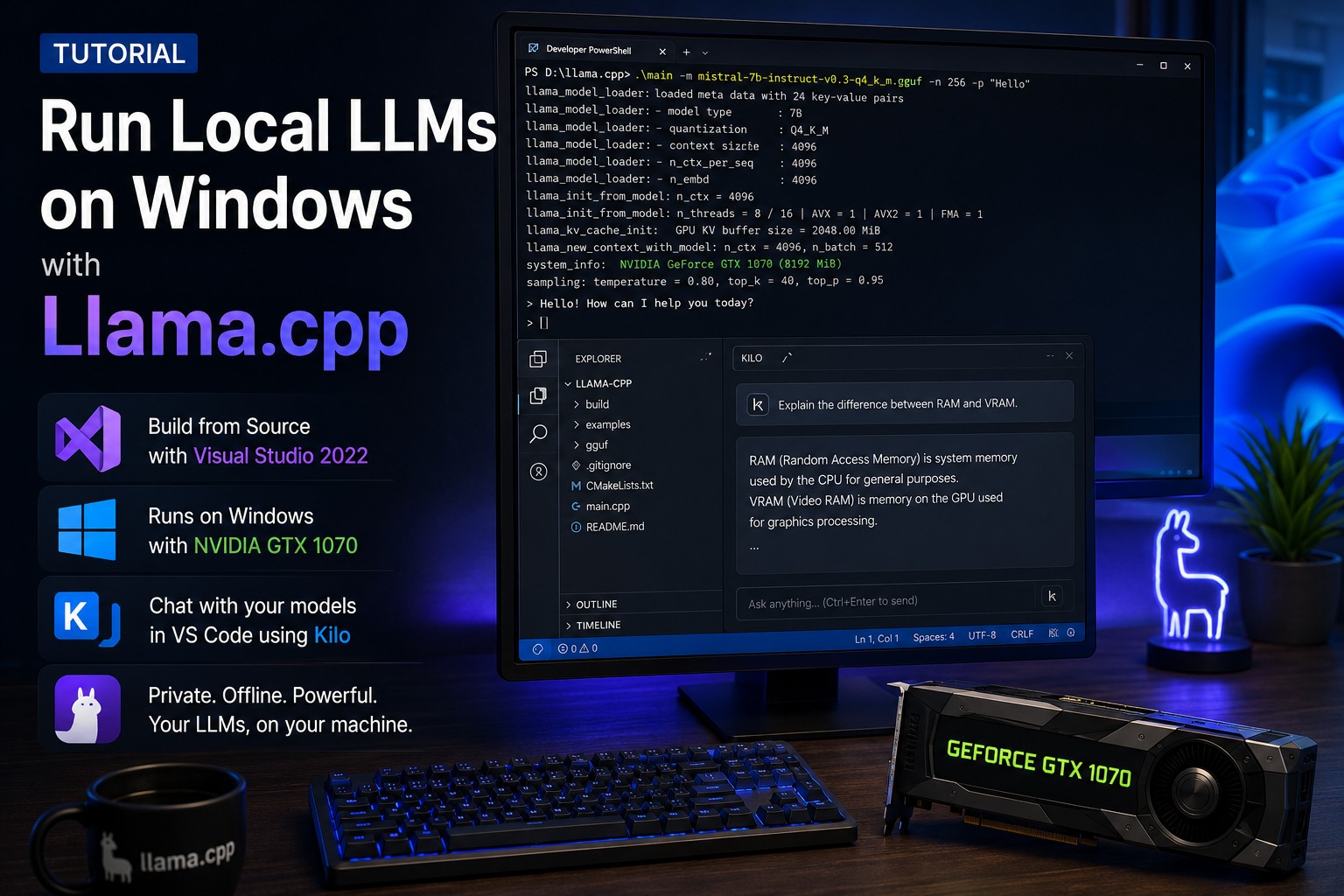
In this article, we’ll build llama.cpp directly from the Git repository using Visual Studio 2022, enable CUDA support for an NVIDIA GeForce GTX 1070 (8 GB), and finally connect the local model to Kilo inside Visual Studio Code.
At the end of this tutorial you’ll have your own local AI coding assistant that never sends your source code to an external service.
]
Prerequisites
Before starting, make sure the following software is installed:
- Windows 10 or Windows 11
- Visual Studio 2022 with Desktop Development with C++
- Git
- CMake
- NVIDIA CUDA 12.4 Toolkit
- Visual Studio Code
- Kilo VS Code extension
For this article the test system uses an NVIDIA GTX 1070 with 8 GB of VRAM. Although this GPU is several generations old, it is still perfectly capable of running modern 7B parameter models using 4-bit quantization.
Clone the llama.cpp Repository
Open PowerShell and clone the official repository.
git clone https://github.com/ggml-org/llama.cpp.git
cd llama.cpp
Using the latest Git repository instead of precompiled binaries ensures that you always have the newest features, performance improvements and bug fixes.
Compile llama.cpp with CUDA Support
Since we want to use our NVIDIA GPU, CUDA support must be enabled during compilation.
The GTX 1070 is based on the Pascal architecture which has Compute Capability 6.1, therefore we explicitly specify the CUDA architecture during configuration.
Generate the build files:
cmake -B build -DGGML_CUDA=ON -DCMAKE_CUDA_ARCHITECTURES="61"
Now compile the project.
cmake --build build --config Release
Depending on your computer this process usually takes several minutes.
After a successful build you’ll find all executables inside
cd build\bin\Release
including
- llama-cli.exe
- llama-server.exe
- llama-bench.exe
- llama-quantize.exe
Download a Model
For this tutorial we’ll use the excellent Qwen2.5-Coder-7B-Instruct model in GGUF format from huggingface.
Download Link (qwen2.5-coder-7b-instruct-q4_k_m.gguf)
Store the model in
C:\sw\models
Using a dedicated model directory makes it easy to switch between different models later.
Start the Local LLM Server
Start the server with the following command:
cd C:\src\llama.cpp\build\bin\Release\
.\llama-server.exe `
    -m "C:\sw\models\qwen2.5-coder-7b-instruct-q4_k_m.gguf" `
    -c 16384 `
    -ngl 99
Let’s briefly explain these parameters.
| Parameter | Description |
|---|---|
-m | Path to the GGUF model |
-c 16384 | Context window of 16K tokens |
-ngl 99 | Offload as many transformer layers as possible to the GPU |
When the server starts successfully you should see log messages indicating that CUDA has been initialized and that the model has been loaded.
The server exposes an OpenAI-compatible REST API on port 8080, making it compatible with many AI tools.
Install Kilo Code
Open Visual Studio Code and install the Kilo Code extension from the Marketplace.
Kilo Code is an AI coding assistant capable of communicating with OpenAI-compatible APIs. Instead of connecting to a cloud provider, we’ll point it to our own llama.cpp server running locally.
Configure Kilo Code
Configure the OpenAI-compatible provider so that Kilo connects to your local server instead of an online service. Go to Settings => Providers => Custom provider => Connect
- Provider ID: llamacpp
- Display Name: llamacpp
- Provider API: OpenAI Compatible
- Base URL:
http://localhost:8080 - API Key: dummy
- Name of the model: qwen2.5-coder
The API key is ignored by llama.cpp but many clients expect one to be configured.
Open the Kilo configuration file (Global Config / kilo.jsonc) and modify your local model.
{
  "models": {
    "C:\\sw\\models\\qwen2.5-coder-7b-instruct-q4_k_m.gguf": {
      "name": "qwen2.5-coder",
      "limit": {
        "context": 16384,
        "output": 4096
      }
    }
  }
}
Once the configuration has been saved, restart Visual Studio Code if necessary.
Test the Installation
Open Kilo Code and start a new conversation (Make sure the correct model is selected).
As a first test, ask the model:
Generate a simple Hello World program in modern C++.The generated response should look similar to this:
#include

int main()
{
    std::cout << "Hello World!" << std::endl;
    return 0;
}
If Kilo Code produces a valid C++ program, your complete local AI environment is working correctly.
Alternative Interfaces
If there are problems with the Client (Kilo Code) there are several other options to test or use the LLM
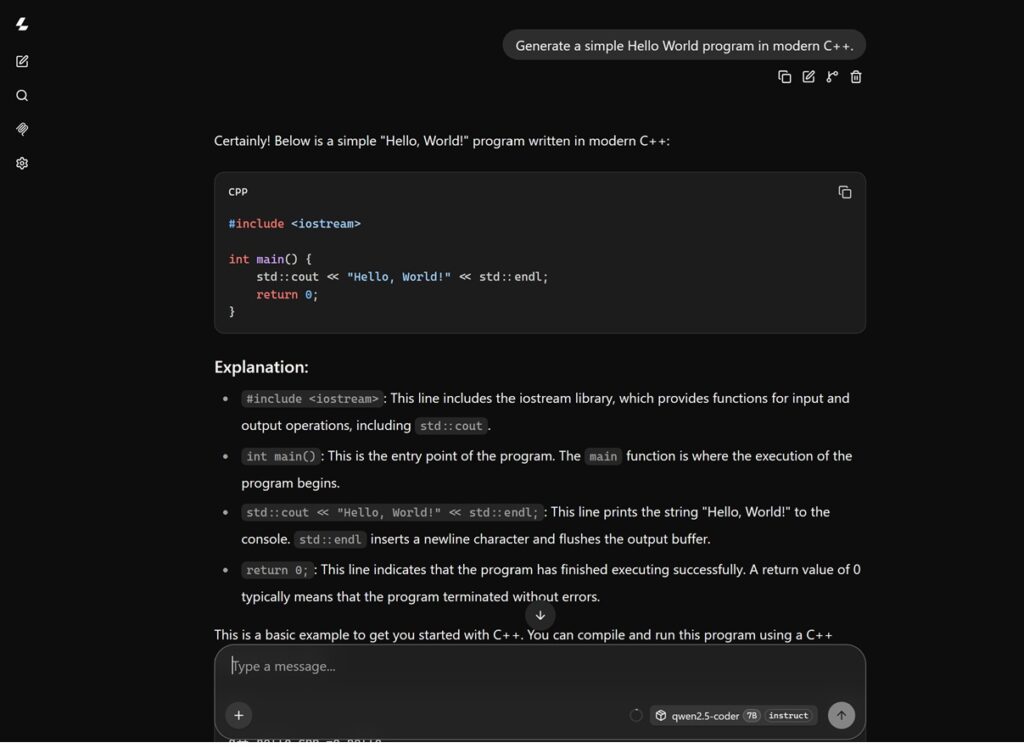
Using the Llama.cpp web interface
With this URL you can also use the local LLM: http://127.0.0.1:8080
Using Cline as a client
Install cline as a VS Code extension, then open the Cline settings and select OpenAI Compatible as the provider.
Configure the endpoint as follows:
| Setting | Value |
|---|---|
| Base URL | http://127.0.0.1:8080 |
| API Key | dummy |
| Model | C:\sw\models\qwen2.5-coder-7b-instruct-q4_k_m.gguf |
The API key is not validated by llama-server, but Cline requires a value to be entered.
Once the configuration has been saved, Cline immediately connects to the local server.
Using Claude CLI as a client
First create a claude config file for the current user:
# run in PowerShell
$null = mkdir "$env:USERPROFILE\.claude" -Force
@'
{
  "env": {
    "ANTHROPIC_BASE_URL": "http://127.0.0.1:8080",
    "ANTHROPIC_AUTH_TOKEN": "sk-dummy-value",
    "CLAUDE_CODE_AUTO_COMPACT_WINDOW": "14000",
    "CLAUDE_AUTOCOMPACT_PCT_OVERRIDE": "70",
    "CLAUDE_CODE_DISABLE_1M_CONTEXT": "1"
  },
  "disableBundledSkills": true,
  "disableWorkflows": true,
  "permissions": {
    "deny": [
      "Workflow", "NotebookEdit", "CronCreate", "CronDelete",
      "CronList", "AskUserQuestion", "EnterPlanMode", "ExitPlanMode"
    ]
  }
}
'@ | Out-File "$env:USERPROFILE\.claude\settings.json" -Encoding utf8
Now we can start claude by running claude in the PowerShell Window:
claude
Performance Notes
The NVIDIA GTX 1070 may not be the newest graphics card, but it still performs remarkably well with quantized 7B models.
The Q4_K_M quantization offers an excellent compromise between model quality, memory consumption and inference speed.
If you encounter CUDA out-of-memory errors, consider lowering the context size or using fewer GPU layers. Conversely, systems with newer GPUs and more VRAM can increase these values for improved performance.
Getting the latest llama.cpp version
To get the latest version of llama.cpp from the git repository perform the following steps in a PowerShell window:
cd C:\src\llama.cpp\
git pull
Remove-Item -Path .\build -Recurse -Force
Now recompile llama.cpp as described here.
References
Why Use Local LLMs?
Running your own language model offers several important advantages.
- Complete privacy
- No monthly API costs
- Offline operation
- Low latency
- Full control over model selection
- No rate limits
For developers working with proprietary source code or confidential customer projects, local inference can be an attractive alternative to cloud-based AI services.
Conclusion
Compiling llama.cpp from source gives you the latest optimizations and full control over the build process. Combined with CUDA acceleration, even an older graphics card such as the GTX 1070 can provide an enjoyable experience with modern coding models like Qwen2.5-Coder-7B-Instruct.
Once the local server is connected to Kilo Code, Visual Studio Code gains a private AI coding assistant that works entirely on your own machine. Whether you’re generating boilerplate code, explaining existing projects or experimenting with new ideas, this setup delivers a fast and secure development environment without relying on external AI providers.
Happy coding!
Leave a Reply